Surfer MCP vous permet de connecter Surfer directement à votre assistant IA, afin d'utiliser les données et les outils de Surfer directement dans une conversation avec Claude, Cursor, ChatGPT ou tout outil prenant en charge le MCP (Model Context Protocol).
Au lieu de basculer constamment entre votre assistant IA et l'application Surfer, vous vous connectez une seule fois et laissez l'assistant créer, optimiser et évaluer le contenu pour vous, à partir de vos données Surfer en direct et de votre configuration de marque.
Pour utiliser Surfer MCP, vous avez besoin de :
Un compte Surfer avec une offre Pro, Peace of Mind ou Enterprise.
Un outil IA prenant en charge le MCP, tel que Claude, Cursor, VS Code, Windsurf ou ChatGPT.

Une fois connecté, Surfer MCP permet à votre assistant IA de travailler directement avec votre compte Surfer : récupérer des données, lancer des optimisations et créer du contenu sans que vous ayez à quitter le chat. Voici ce qu'il peut faire aujourd'hui :
Créez et récupérez des Éditeurs de contenu (mot-clé, emplacement, appareil, mots-clés secondaires, modèles, Tonalités, instructions personnalisées)
Récupérez les recommandations SEO et vérifiez la couverture des termes, de la structure et des thématiques
Récupérez uniquement les recommandations SEO et AI Search manquantes (termes et faits), et pas seulement l'ensemble complet
Récupérez les recommandations AI Search (AIO) : des faits sourcés issus de la SERP et des principaux moteurs d'IA (AI Overviews, AI Mode, Gemini, OpenAI, Perplexity)
Gérez les concurrents de la SERP (inclure/exclure, charger plus, recalculer les recommandations)
Récupérez et régénérez des plans
Générez des articles complets avec Surfer AI, avec une révision manuelle du plan en option
Ajoutez des liens internes et externes aux articles générés avec Surfer AI
Récupérez et mettez à jour votre contenu en Markdown ou HTML
Recalculez le score du contenu pour le SEO, l'AI Search et le score total
Lancez l'Auto-optimisation et suivez son statut
Obtenez des permaliens partageables
Listez et récupérez vos projets Suivi de visibilité IA
Récupérez des résumés de visibilité : taux de mentions, position dans la réponse et score de présence par modèle d'IA
Consultez les tendances de visibilité quotidiennes au fil du temps
Examinez les prompts suivis, regroupés par thématique
Consultez les sources citées (par domaine ou URL, par modèle, avec un indicateur de mention de marque)
Listez les marques mentionnées dans les réponses IA
Récupérez vos opportunités de mentions
Récupérez des pages d'Audit de contenu à optimiser
Récupérez des idées de Carte thématique à rédiger
Créez un Espace de marque à partir de l'URL du site web d'une marque, puis listez, récupérez et activez des Espaces de marque
Récupérez et mettez à jour le Contexte de marque
Créez, récupérez, mettez à jour et supprimez des Tonalités
Créez, récupérez, mettez à jour et supprimez des modèles de contenu
Vous pouvez également utiliser des skills intégrés, des playbooks prêts à l'emploi qui exécutent un Workflow complet (comme la rédaction ou l'optimisation d'un article) à partir d'une seule demande, en se mettant en pause lorsqu'ils ont besoin de votre intervention.
surfer-content-recommendations — Agit sur les recommandations de Sites de Surfer ; sélectionne les travaux de rédaction ou d'optimisation guidés par les recommandations et délègue au skill approprié ci-dessous.
surfer-create-content-brief — Crée un brief prêt à l'emploi pour le rédacteur, avec des conseils SEO et AI Search, une analyse SERP/concurrents, une structure, des termes et des questions (aucun brouillon n'est rédigé).
surfer-create-outline — Génère un plan d'article basé sur la SERP, sans brouillon complet.
surfer-manage-content-templates — Crée, inspecte, met à jour, choisit ou supprime des modèles de contenu réutilisables.
surfer-optimize-content — Améliore le Score SEO et/ou le Score AI Search d'un article ou d'une page existants.
surfer-write-article — Rédige un tout nouvel article ou article de blog optimisé pour le SEO/l'AI Search à partir d'un mot-clé ou d'une thématique.
Et vous trouverez ici une liste des événements bruts :
Content Editor
content_editor__create
content_editor__get
content_editor__list
content_editor__update
content__get
content__update
content_score__get
outline__get
outline__regenerate
permalink__list
SEO Guidelines
seo_guidelines__get
seo_guidelines__get_terms_coverage
seo_guidelines__update_terms
seo_guidelines__update_structure
seo_guidelines__update_competitors
seo_guidelines__update_topics_and_questions
seo_guidelines__load_more_competitors
AI Search Guidelines
ai_search_guidelines__get
ai_search_guidelines__list_facts
AI Article
ai_article__generate
ai_article__get
ai_article__list
ai_article__get_outline
ai_article__submit_outline
Auto-Optimize
auto_optimize__run
auto_optimize__get
AI Tracker
ai_tracker__list
ai_tracker__get
ai_tracker__get_summary
ai_tracker__get_time_series
ai_tracker__list_prompts
ai_tracker__list_sources
ai_tracker__list_brands
ai_tracker__get_mention_gap
Recommendations
recommendation__list
recommendation__optimize
Workspace
workspace__list
workspace__get
workspace__create
workspace__activate
Brand
brand__get
brand__update
Custom Voices
custom_voice__list
custom_voice__get
custom_voice__create
custom_voice__update
custom_voice__delete
Content Templates
content_template__list
content_template__get
content_template__create
content_template__update
content_template__delete
surfer_content_template__list
Skills
skill__list
skill__get
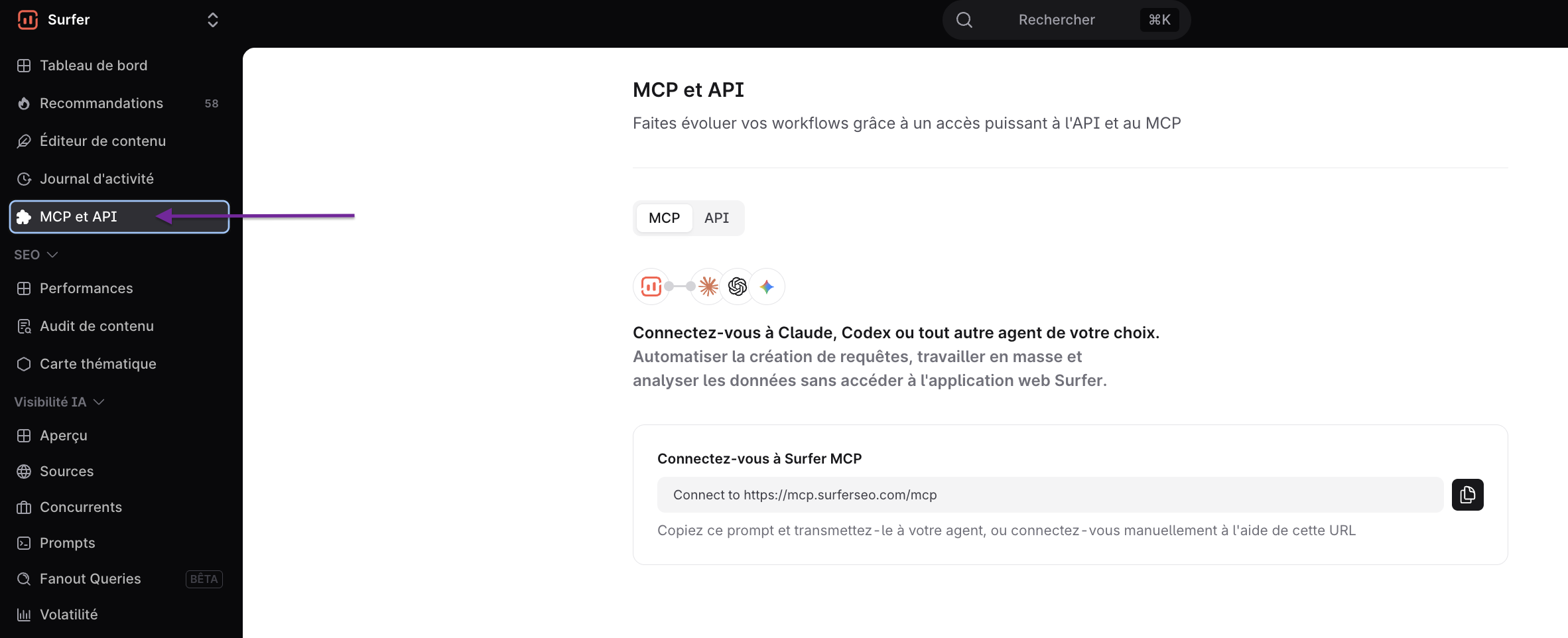
Le Surfer MCP connecte Surfer à votre assistant IA préféré afin qu'il puisse récupérer vos Espaces de marque, votre contenu et vos données directement dans vos conversations. La configuration prend quelques minutes et fonctionne de la même manière avec tous les clients : indiquez-lui le serveur Surfer MCP, connectez-vous avec votre compte Surfer, et c'est prêt.
L'adresse du serveur est : https://mcp.surferseo.com/mcp
Les guides de configuration et l'adresse du serveur sont également disponibles dans l'application Surfer → section MCP et API, située dans la barre de menu de gauche :
Maintenant, sélectionnez votre client ci-dessous et suivez les étapes :
Dans claude.ai ou l'application de bureau Claude, ouvrez Personnaliser → Connecteurs et cliquez sur Ajouter un connecteur personnalisé.
Nommez-le Surfer, collez l'URL du serveur et sélectionnez Continuer.
Conservez les paramètres d'authentification détectés et cliquez sur Ajouter.
Cliquez sur Se connecter à côté de Surfer et connectez-vous. Si vous avez plusieurs organisations, sélectionnez la vôtre et choisissez Autoriser.
Dans une nouvelle conversation, activez Surfer sous + → Connecteurs.
Remarque : les offres Claude gratuites autorisent un connecteur personnalisé. Sur les offres Team et Enterprise, un propriétaire l'ajoute sous Paramètres de l'organisation → Connecteurs → Ajouter → Personnalisé, puis chaque membre clique sur Se connecter dans Personnaliser → Connecteurs.
Exécutez ceci dans votre terminal. Supprimez --scope user pour ajouter Surfer uniquement au projet actuel :
claude mcp add --transport http --scope user surfer https://mcp.surferseo.com/mcpDémarrez Claude Code, exécutez /mcp, sélectionnez surfer et choisissez Authenticate. Connectez-vous avec votre compte Surfer dans le navigateur. Si le navigateur ne s'ouvre pas, copiez l'URL affichée par Claude Code et ouvrez-la vous-même.
Dans ChatGPT, ouvrez Paramètres → Sécurité et connexion et activez le Mode développeur.
Accédez à chatgpt.com/plugins et cliquez sur +. Nommez-le Surfer, collez l'URL du serveur dans le champ correspondant, choisissez OAuth, cochez Je comprends et je souhaite continuer, puis cliquez sur Créer.
Sur la page du plugin, cliquez sur Se connecter, puis sur Se connecter avec Surfer. Si vous avez plusieurs organisations, sélectionnez la vôtre et choisissez Autoriser.
Dans une conversation, ouvrez le menu +, choisissez Mode développeur et sélectionnez Surfer.
Remarque : le Mode développeur fonctionne sur ChatGPT sur le web pour les comptes Plus, Pro, Business, Enterprise et Edu. La disponibilité peut dépendre de la politique de votre espace de travail.
En savoir plus dans notre documentation MCP complète :
Exécutez ceci dans votre terminal et connectez-vous avec votre compte Surfer lorsque le navigateur s'ouvre :
codex mcp add surfer --url https://mcp.surferseo.com/mcpSi le navigateur ne s'ouvre pas, connectez-vous avec :
codex mcp login surferAu lieu de la commande de l'étape 1, vous pouvez ajouter ceci vous-même dans ~/.codex/config.toml :
[mcp_servers.surfer]
url = "https://mcp.surferseo.com/mcp"
Remarque : la CLI Codex, l'extension IDE Codex et l'application de bureau ChatGPT partagent ce fichier de configuration.
Ajoutez ceci à ~/.cursor/mcp.json (tous les projets) ou .cursor/mcp.json (ce projet), puis enregistrez :
   {
     "mcpServers": {
       "surfer": {
         "url": "https://mcp.surferseo.com/mcp"
       }
     }
   }
Ouvrez Customize → MCPs, cliquez sur Authenticate sur la ligne surfer et connectez-vous avec votre compte Surfer. La ligne affiche Ready une fois connectée.

Où puis-je trouver la documentation développeur officielle de Surfer sur le MCP ?
Rendez-vous sur notre documentation pour développeurs. Vous la trouverez également dans l'application Surfer → section MCP & API (dans le menu de gauche) → MCP → faites défiler vers le bas jusqu'au bouton correspondant qui vous mènera à la documentation.
Quelles offres d'abonnement peuvent utiliser Surfer MCP ?
Les offres Pro, Peace of Mind et Enterprise. L'essai Surfer inclut également l'accès au MCP.
Avec quels outils IA fonctionne-t-il ?
Tout outil qui prend en charge le MCP, y compris Claude, Cursor, VS Code, Windsurf et ChatGPT.
Dois-je me connecter à chaque fois ?
Non. Vous vous connectez une seule fois, et votre session reste active. Il se peut que vous soyez occasionnellement invité à vous reconnecter lorsque nous publions des mises à jour.
L'utilisation de MCP compte-t-elle dans les limites de mon offre ?
Oui. Tout ce que vous faites via MCP utilise votre abonnement Surfer, comme lorsque vous travaillez dans l'application. Les actions qui créent ou génèrent du contenu, comme la création d'un Éditeur de contenu, comptent dans la limite de votre offre : vous ne pouvez donc pas la dépasser. La simple consultation ou lecture de données n'utilise pas votre limite.
Puis-je partager l'accès avec quelqu'un d'autre ?
Oui. Toute personne disposant d'un compte Surfer et appartenant à une organisation ayant accès au MCP peut se connecter avec son propre compte.
Une demande semble bloquée, y a-t-il un problème ?
Non. Certaines actions (comme la création d'un Éditeur de contenu) s'exécutent en arrière-plan et prennent quelques minutes. Demandez simplement à votre assistant de vérifier si c'est prêt.
La connexion ne fonctionne pas. Que dois-je vérifier ?
Confirmez que :
le MCP auquel vous vous connectez est le même que celui disponible dans les paramètres de l'application Surfer ;
vous vous connectez avec le bon compte Surfer et que votre offre inclut l'accès au MCP.
Toujours bloqué ? Contactez-nous à [email protected].