Surfer MCP lets you connect Surfer directly to your AI assistant, so you can use Surfer's data and tools right inside a chat with Claude, Cursor, ChatGPT, or any tool that supports MCP (Model Context Protocol).
Instead of switching back and forth between your AI assistant and the Surfer app, connect once and let the assistant create, optimize, and score content using your live Surfer data and brand setup.
Most AI SEO work happens across a dozen tabs. With the new Surfer MCP, it happens in one chat.
This complete video walkthrough shows how to optimize content, write in your own brand voice, and improve your AI search visibility straight from Claude, ChatGPT, Codex, or Cursor:
By the end of this video, you'll know how to:
Connect the Surfer MCP to your AI assistant and see everything it can do
Surface ranked optimization opportunities for your site in seconds
Create a writer-ready content brief and share it as a hosted page
Save your writing style as a reusable Surfer brand voice
Generate a first draft with Surfer's AI writer and fact-check it against primary sources
Raise your SEO & GEO score while keeping your voice and citations intact
Send a finished article to WordPress as a draft without leaving the chat
Analyze AI Tracker data model by model to see why competitors get mentioned
Find the sources AI cites (NBC, Allure, and more) and build your outreach list
Spot on-site content gaps that make your brand easier for AI to cite
Give it a watch!
To use Surfer MCP, you need:
A Surfer account on a Pro, Peace of Mind, Enterprise, or AI Search Analytics plan.
An AI tool that supports MCP, such as Claude, Cursor, VS Code, Windsurf, or ChatGPT.

Once connected, Surfer MCP lets your AI assistant work directly with your Surfer account, pulling data, running optimizations, and creating content without you leaving the chat. Here's what it can do today:
Create and fetch Content Editors (keyword, location, device, secondary keywords, templates, custom voices, custom instructions)
Fetch SEO guidelines and check term, structure, and topic coverage
Fetch only the missing SEO and AI Search guidelines (terms and facts), not just the full set
Fetch AI Search (AIO) guidelines — source-attributed facts from the SERP and major AI engines (AI Overviews, AI Mode, Gemini, OpenAI, Perplexity)
Manage SERP competitors (include/exclude, load more, recalculate guidelines)
Fetch and regenerate outlines
Generate full Surfer AI articles, with optional manual outline review
Add internal and external links to generated Surfer AI articles
Fetch and update your content in Markdown or HTML
Re-score content for SEO, AI Search, and total score
Run Auto-Optimize and track its status
Get shareable permalinks
List and fetch your AI Tracker projects
Pull visibility summaries — mention rate, position in the answer, and presence score per AI model
View daily visibility trends over time
Review tracked prompts, grouped by topic
See cited sources (by domain or URL, per model, with a brand-mention flag)
List the brands AI answers mention
Fetch your mention gaps
Fetch Content Audit pages to optimize
Fetch Topical Map ideas to write
Create a workspace from a brand website URL, then list, fetch, and activate workspaces
Fetch and update brand knowledge
Create, fetch, update, and delete custom voices
Create, fetch, update, and delete content templates
You can also use built-in skills, ready-made playbooks that run a full workflow (like writing or optimizing an article) from a single request, pausing when they need your input.
surfer-content-recommendations — Act on Surfer's site recommendations; picks recommendation-led Write or Optimize work and delegates to the relevant skill below.
surfer-create-content-brief — Build a writer-ready brief with SEO + AI Search guidance, SERP/competitor analysis, structure, terms, and questions (no draft written).
surfer-create-outline — Generate a SERP-informed article outline without a full draft.
surfer-manage-content-templates — Create, inspect, update, choose, or delete reusable content templates.
surfer-optimize-content — Improve an existing article's/page's SEO Score and/or AI Search Score.
surfer-write-article — Write a brand-new SEO/AI-Search-optimized article or blog post from a keyword or topic.
And here you can find a list of raw events:
Content Editor
content_editor__create
content_editor__get
content_editor__list
content_editor__update
content__get
content__update
content_score__get
outline__get
outline__regenerate
permalink__list
SEO Guidelines
seo_guidelines__get
seo_guidelines__get_terms_coverage
seo_guidelines__update_terms
seo_guidelines__update_structure
seo_guidelines__update_competitors
seo_guidelines__update_topics_and_questions
seo_guidelines__load_more_competitors
AI Search Guidelines
ai_search_guidelines__get
ai_search_guidelines__list_facts
AI Article
ai_article__generate
ai_article__get
ai_article__list
ai_article__get_outline
ai_article__submit_outline
Auto-Optimize
auto_optimize__run
auto_optimize__get
AI Tracker
ai_tracker__list
ai_tracker__get
ai_tracker__get_summary
ai_tracker__get_time_series
ai_tracker__list_prompts
ai_tracker__list_sources
ai_tracker__list_brands
ai_tracker__get_mention_gap
Recommendations
recommendation__list
recommendation__optimize
Workspace
workspace__list
workspace__get
workspace__create
workspace__activate
Brand
brand__get
brand__update
Custom Voices
custom_voice__list
custom_voice__get
custom_voice__create
custom_voice__update
custom_voice__delete
Content Templates
content_template__list
content_template__get
content_template__create
content_template__update
content_template__delete
surfer_content_template__list
Skills
skill__list
skill__get
The Surfer MCP connects Surfer to your favorite AI assistant so it can pull your workspaces, content, and data directly into your conversations. Setup takes a couple of minutes and works the same way across every client: point it at the Surfer MCP server, sign in with your Surfer account, and you're ready.
The server address is: https://mcp.surferseo.com/mcp
Setup guides and the server address are also available in the Surfer app → MCP & API section located on the left menu bar:
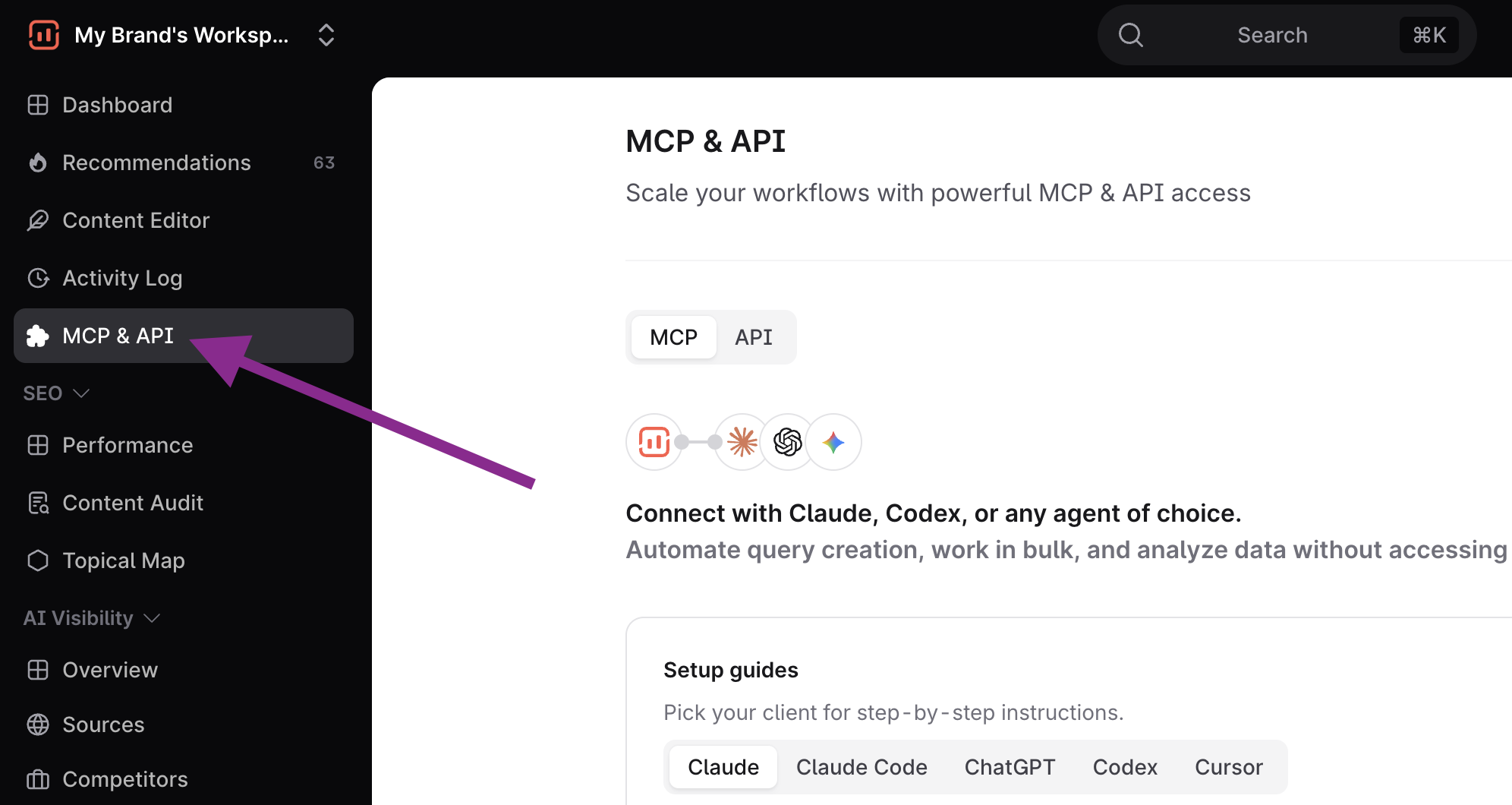
Now, pick your client below and follow the steps:
In claude.ai or the Claude desktop app, open Customize → Connectors and click Add custom connector.
Name it Surfer, paste the server URL, and select Continue.
Keep the detected authentication settings and click Add.
Click Connect next to Surfer and sign in. If you have more than one organization, pick it and select Authorize.
In a new chat, enable Surfer under + → Connectors.
Note: Free Claude plans allow one custom connector. On Team and Enterprise plans, an owner adds it under Organization settings → Connectors → Add → Custom, then each member clicks Connect on it in Customize → Connectors.
Learn more with our full MCP documentation »
Run this in your terminal. Drop --scope user to add Surfer to the current project only:
claude mcp add --transport http --scope user surfer https://mcp.surferseo.com/mcpStart Claude Code, run /mcp, select surfer, and choose Authenticate. Sign in with your Surfer account in the browser. If the browser doesn't open, copy the URL Claude Code prints and open it yourself.
In ChatGPT, open Settings → Security and login and turn on Developer mode.
Go to chatgpt.com/plugins and click +. Name it Surfer, paste the server URL as the server URL, choose OAuth, tick I understand and want to continue, and click Create.
On the plugin page, click Connect, then Sign in with Surfer. If you have more than one organization, pick it and select Authorize.
In a chat, open the + menu, choose Developer mode, and select Surfer.
Note: Developer mode works on ChatGPT web for Plus, Pro, Business, Enterprise, and Edu accounts. Availability can depend on your workspace policy.
Learn more with our full MCP documentation:
Run this in your terminal and sign in with your Surfer account when the browser opens:
codex mcp add surfer --url https://mcp.surferseo.com/mcpIf the browser doesn't open, sign in with:
codex mcp login surferInstead of the command in step 1, you can add this to ~/.codex/config.toml yourself:
[mcp_servers.surfer]
url = "https://mcp.surferseo.com/mcp"
Note: The Codex CLI, the Codex IDE extension, and the ChatGPT desktop app share this config file.
Add this to ~/.cursor/mcp.json (all projects) or .cursor/mcp.json (this project) and save:
json
   {
     "mcpServers": {
       "surfer": {
         "url": "https://mcp.surferseo.com/mcp"
       }
     }
   }
Open Customize → MCPs, click Authenticate on the surfer row, and sign in with your Surfer account. The row reads Ready once connected.

Where can I find Surfer official MCP dev documentation?
Head to our documentation for developers. You can also find it linked in the Surfer app → MCP & API section (on the left menu bar) → MCP → Scroll down to find the corresponding button that will take you to the docs.
Which subscription plans can use Surfer MCP?
Pro, Peace of Mind, and Enterprise subscription plans. Surfer trial and AI Search Analytics also come with MCP access.
Which AI tools does it work with?
Any tool that supports MCP, including Claude, Cursor, VS Code, Windsurf, and ChatGPT.
Do I need to sign in every time?
No. You sign in once, and your session stays connected. You may occasionally be asked to reconnect when we release updates.
Does using MCP count against my plan limits?
Yes. Anything you do through MCP uses your Surfer subscription, just like working in the app. Actions that create or generate content, such as creating a Content Editor, count toward your plan limit, so you can't go over it. Simply viewing or reading data doesn't use up your limit.
Can I share access with someone else?
Yes. Anyone with a Surfer account in an organization with MCP access can connect with their own account.
A request seems to be stuck, is something wrong?
No. Some actions (like creating a Content Editor) run in the background and take a few minutes. Just ask your assistant to check whether it's ready.
It's not connecting. What should I check?
Confirm that:
- the MCP you’re connecting with is the same as the one available in the Surfer App settings.
- you're signing in with the right Surfer account and that your plan includes MCP access.
Still stuck? Contact us at [email protected].