
Workspaces let you divide and manage your content by brands. Each Workspace contains articles, data, tools, and settings related to a chosen brand, including Sites and AI tracking.
Why Use Workspaces?
The main goal of workspaces is to help you organize your work better by keeping everything related to a specific brand in one place. This is especially useful if you:
Manage multiple brands or websites
Want clear separation between projects
Need consistent brand-focused insights and recommendations
Workspaces ensure that Surfer’s tools, data, and AI features always operate within the correct brand context.
Key characteristics of a workspace:
Each workspace represents one brand
Contains one dedicated Sites project
Contains one dedicated AI Tracker
Contains one Brand Knowledge
Everything inside a workspace is scoped to the chosen brand
Select the workspace drop-down button in the top-left corner of the Surfer app.
Select Add new workspace.
Give the workspace a name (we recommend using your brand name).
Connect Google Search Console (GSC) or enter your brand’s site URL address manually. If you choose to connect your GSC (recommended), follow these instructions to establish the connection.

Select the target location and language. Select Next - Set up Brand Kit to proceed.
Here, our system will automatically generate Brand Knowledge for you. But feel free to modify it to align with your business needs.
Select which members of your organization should be assigned to the new workspace.
Select Continue with x members to complete the setup.
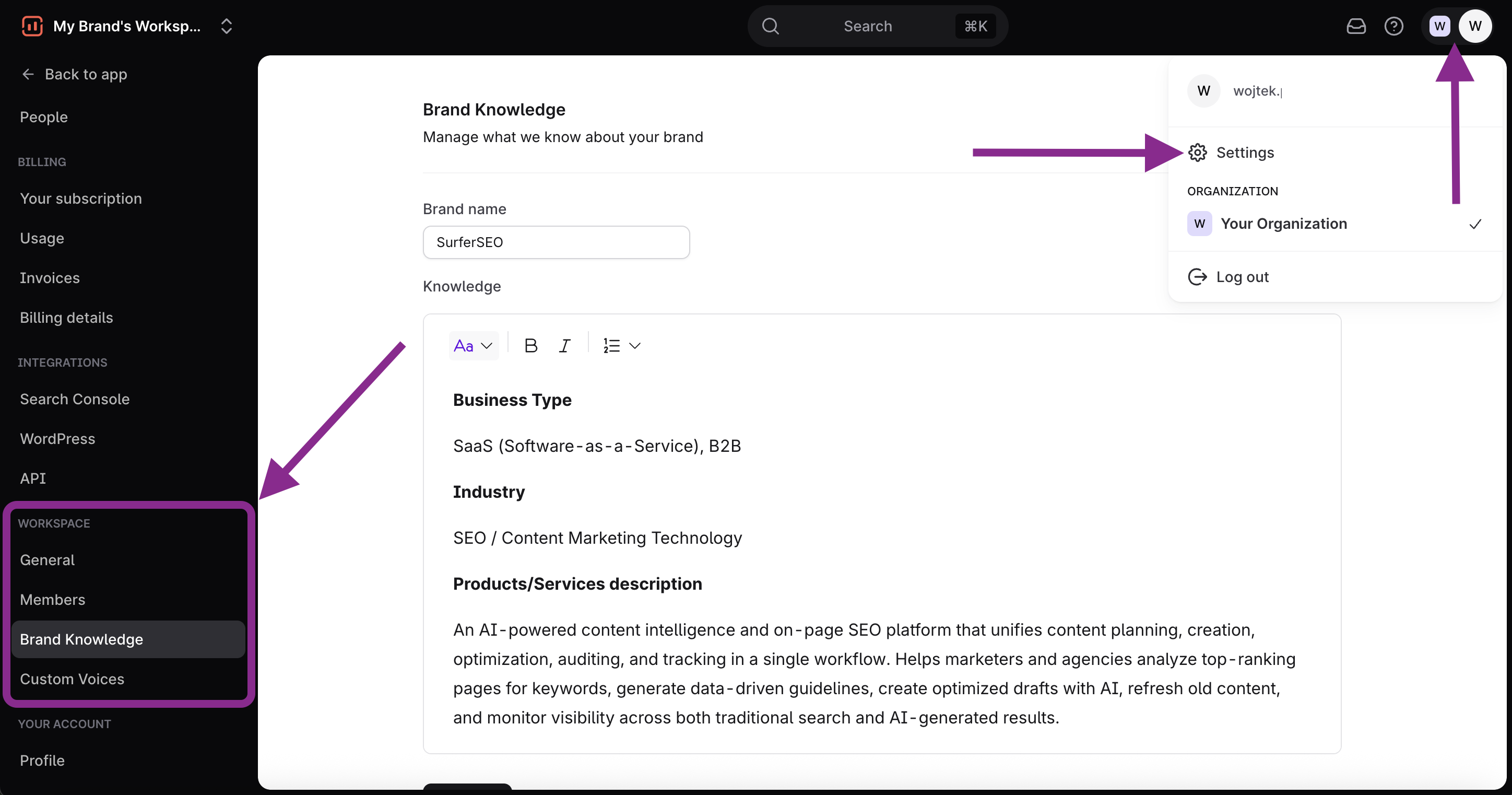
Each workspace has its own settings section. From there, you can:
Change the workspace name
Upload or update the workspace logo
Delete the workspace (for now, you cannot delete the default workspace, only branded workspaces)
Manage your Brand Knowledge
Manage your Custom Voices
If your subscription plan allows it, you can switch between workspaces or add new ones using the workspaces switcher in the top-left corner of the app. This makes it easy to move between brands without losing context.
You can assign specific members to workspaces. A single member can be assigned to any number of workspaces at the same time.
You can easily check which member belongs to which workspace in the Settings → People section.
There, select a workspace icon to quickly manage their access.
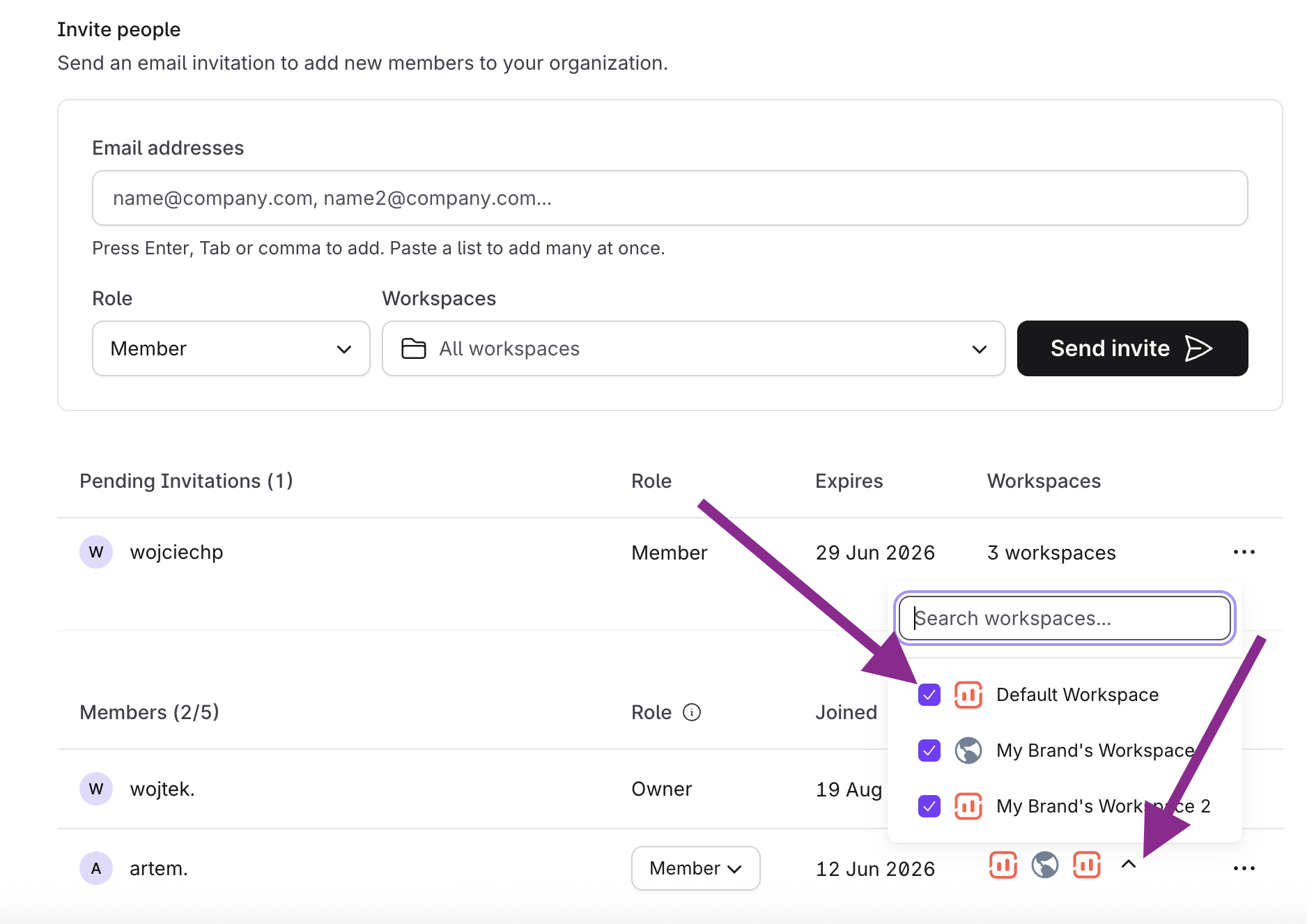
You can add/remove members from specific Workspace settings as well:
Select a Workspace from the drop-down menu at the top-left corner of the app
Select your profile icon in the top-right corner of the app. Select Settings.
Scroll down the left menu bar to reach the Workspace → Members section.
Select Manage to add/remove members.

The Activity Log gives workspace managers a clear view of what their team is doing in Surfer. You can see who created what, when, and from which part of the platform — all in one place.
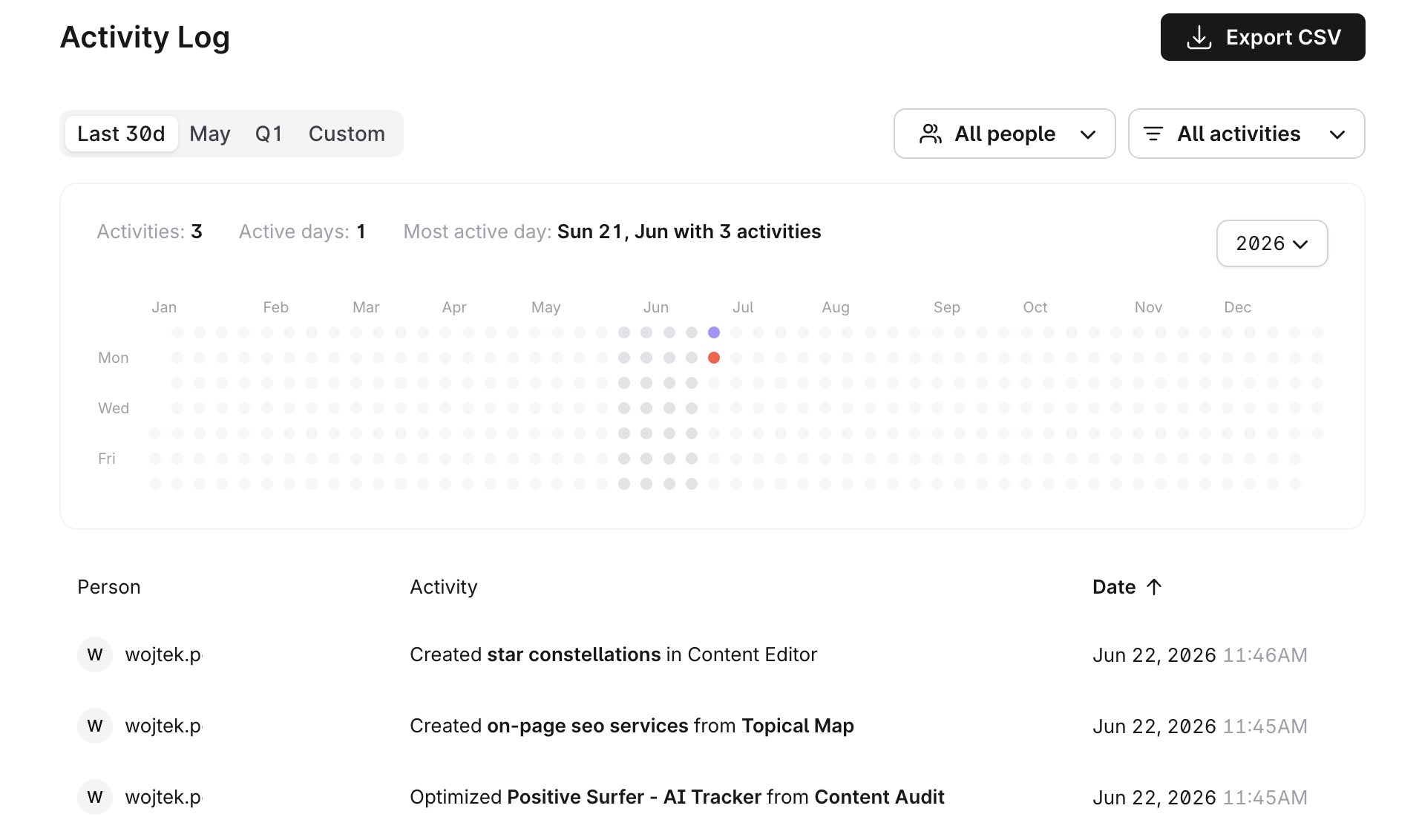
The Activity Log currently records three types of actions:
Created Content Editor (standalone) – when a member creates a new Content Editor document directly.
Created Content Editor from Topical Map – when a member creates a Content Editor article from a Topical Map cluster.
Page Optimized from Content Audit – when a member optimizes a page via Content Audit. This entry links directly to the relevant Content Audit page.
Access to the Activity Log depends on your role in the workspace:
Workspace Owners and Admins can see the activities of all workspace members.
Regular Members can only see their own activities.
Admins can also navigate to a specific member's profile by selecting them from the list to view their activity individually, or use the filters to narrow down the general list.
You can filter the log by:
Activity type – show only specific types of actions
User – focus on a specific team member
Time period – choose from Last 30 days, a specific month, quarter, or a custom date range
The Activity Log includes a heat map showing daily activity throughout the year. Each dot represents a day — the darker the dot, the more activities were recorded that day. Today's date is always marked in orange.
You can switch between years using the selector in the top-right corner of the heat map, and months using selectors in the top-left corner. Note that the year selector applies to the heat map only and does not affect the activity list below.
You can export the current activity log to a CSV file using the Export CSV button in the top-right corner. The export respects your active filters — so if you've filtered by a specific user or time period, only those records will be included in the file.
If you need to move content from one workspace to another within your organization, Surfer supports folder migrations on request via the support team.
What can be migrated
Folders containing Content Editor queries
Folders containing Audit queries
Folders containing Search Analyzer queries
Content not assigned to any folders (lands in the default related list)
Not currently supported
Keyword Research queries
Topic Research queries
Sites projects
Contact us at [email protected] or via live chat by selecting the help (?) icon in the upper-right corner of the Surfer app (or bottom-right corner of the Help Center) to submit your migration request.
Provide the following information:
1. Your organization's owner's email.
2. The name or ID of each folder you want to move (or confirm the content is not assigned to any folder).
3. The name or ID of the destination workspace.
The number of workspaces you can create depends on your plan. Each plan has a limit on the number of branded workspaces allowed. Visit our pricing page to learn more.
Members can’t create and manage workspaces. Only Admins and Owners can. Learn more about roles in Surfer.
What if I downgrade or fail to renew my subscription?
After a plan downgrade, any branded workspaces over the limit will be disabled.
If your subscription gets canceled, all branded workspaces will be disabled.
Disabled workspaces can be manually re-enabled after resubscribing, as long as your plan allows.
Any questions? Contact us at [email protected] or via live chat by selecting the help (?) icon in the upper-right corner!
