The AI Tracker’s Prompt Management Dashboard is your centralized hub for viewing, organizing, and analyzing all your AI prompt usage. It helps you understand how your brand appears in AI‑generated content and gives you full access to review and manage the prompts you’re using.
Navigate to the AI Visibility section on the left menu bar. Select Overview.
Surfer will analyze your brand and suggest topics and prompts worth tracking. Give it a few minutes to complete the task.
Once it’s done, you’ll see a list of viable topics and associated prompts. Decide which ones you want to track and deselect the ones you don’t.
You can also add your own topics and get automated prompt suggestions, or enter your prompts manually. Select Add topic or Add in bulk to do so. You’ll find them in the top-right corner of this section.
Select Finish to proceed. Surfer will now crunch data and generate your AI Tracker. Please give it a few minutes to complete the task.

Navigate to the "Prompts" section.
Select the Manage Prompts button to open the prompt management interface.
- Select the + Add prompt to “xyz” topic. Type in the prompt.
- Select the Save button to confirm.
You can also move prompts from one topic to another or delete them. To do so, select prompts you'd like to affect.
a) To reassign them, select the Move to topic dropdown. Search for or create a new topic. Select the new topic for your prompts.
b) If you wish to remove your prompts, simply click the Remove selected button.
You can add entirely new topics by selecting the Add topic button.
To add topics along with prompts in bulk, enter the Add in bulk section.
- Expand the dropdown menu.
- Type in the Search or create topic... field to find an existing topic or add a new one.
- If you inserted a name for the new topic, add it by selecting the + Create “xyz” topic button.
- Enter prompts that you'd like to add to the selected topic.
- Select the Add prompts button to complete.
Once you're happy with all the changes, select the Save button to confirm them.
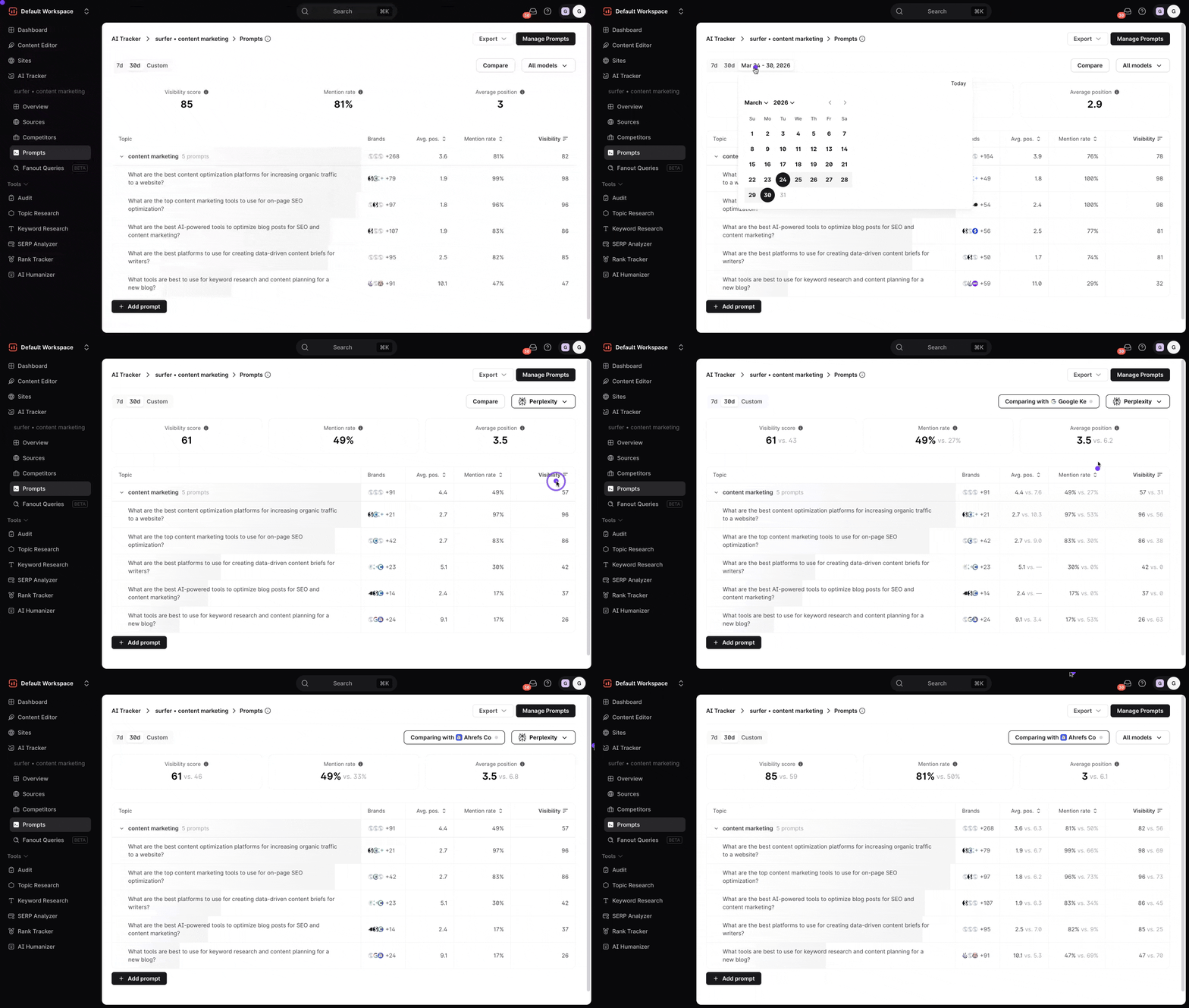
At the top of the dashboard, you'll find the date range and AI models filters. This lets you select the date range for which you want to show the data and to narrow down results by the AI model
You can see your performance vs. other brands by selecting “Compare.” The reports will show a comparison of data between you and your chosen competitor.
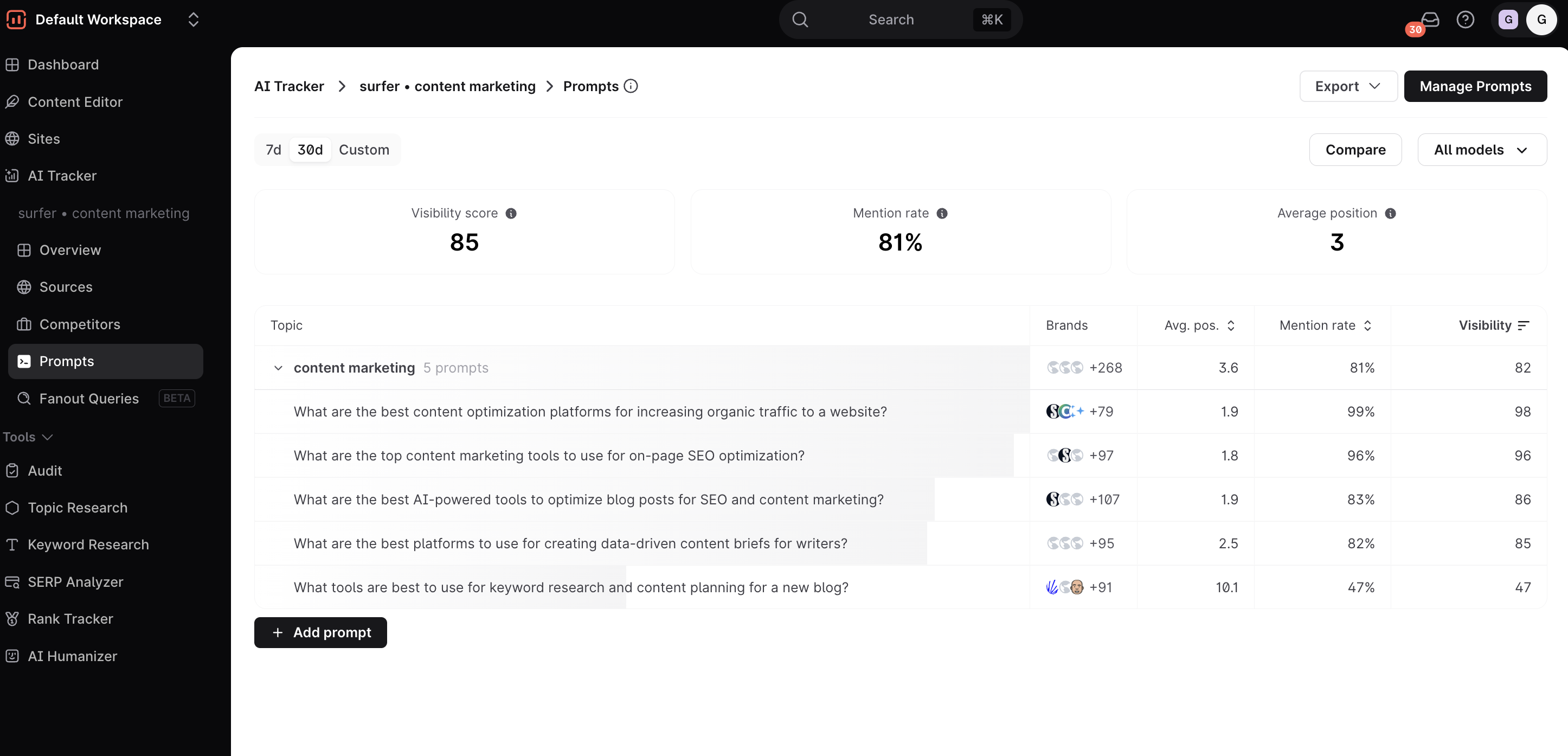
In the upper-right corner, you can select the Manage Prompts button to add, edit, or remove your custom prompts.
You can also add a new topic for the same project and move existing prompts inside it.
Inside your AI Tracker’s Prompts Dashboard, you have four main data results:
Mention Rate: how frequently your brand is mentioned in prompts’ outputs. If those numbers drop, you may need to adjust your prompt strategy.
Visibility Score (aka Presence Score): how often your brand shows up in AI outputs. Monitor how often your brand is visible or mentioned.
Average Position: the typical ranking of your brand in AI‑generated content.
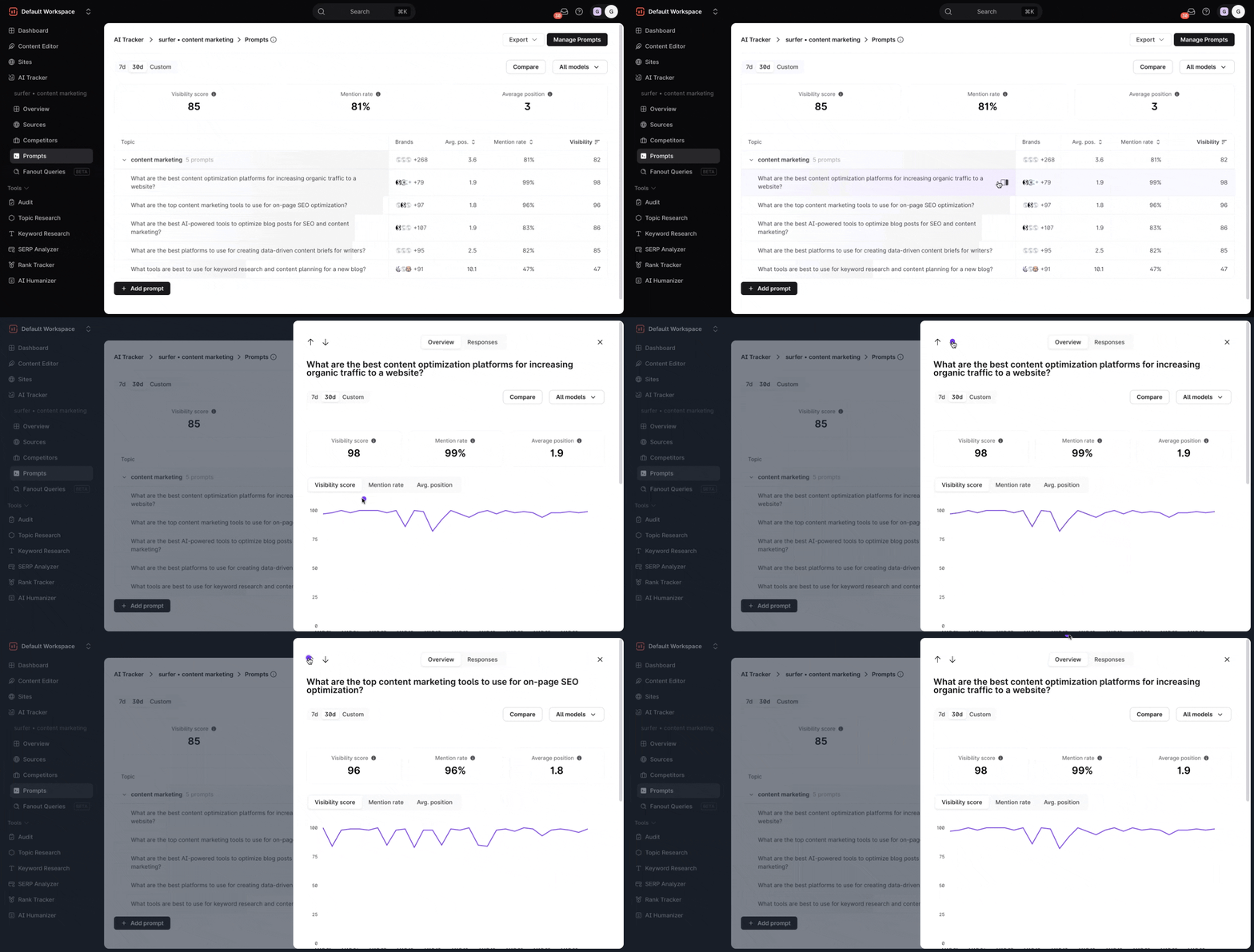
Topics Table: Below these key metrics, you will find a table that presents your selected prompts for your chosen topic or keyword and shows the report with the three metrics above. We also added a Brands column, which shows which brands are most often recognized by your AI prompts and how they stack up by average position. This way, you can assess your competitive standing.
From the table, hover over one of your prompts and choose Open details that should appear next to it so you can see more in‑depth data. Inside, you’ll see:
Detailed graphic table of Visibility Score, Mention Rate, and Average Position over a period of time
Detailed Brands information, such as which LLMs recognize which brand and how they compare in average position.
Fanout Queries table, which presents search queries that AI models generated when answering the selected prompt
The Sources table, which lists sources mentioned for each brand, is sorted (by default) by the number of times they appear.
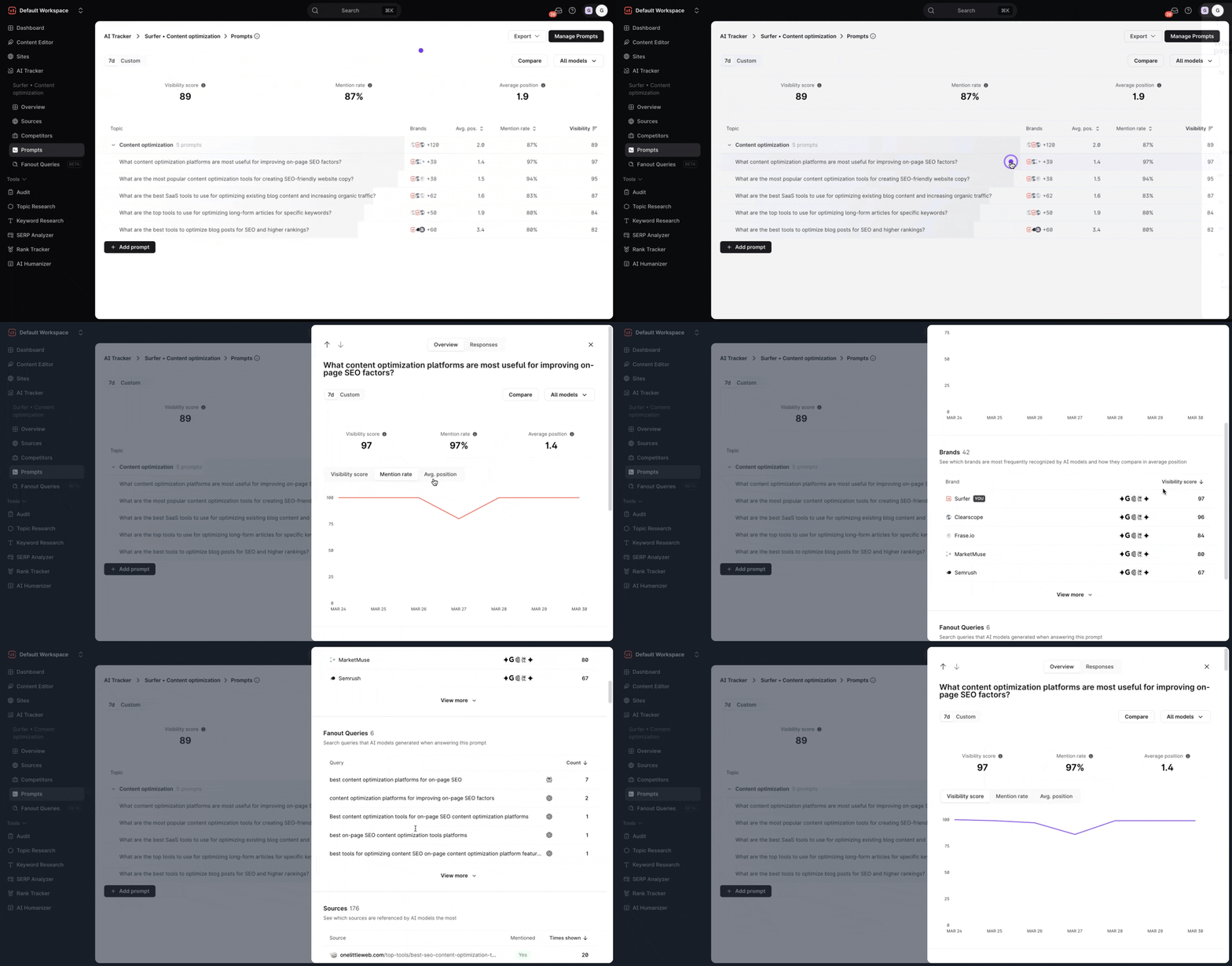
You can review the in-depth details of your prompts without closing the side panel or switching between prompts by simply clicking the up and down arrow buttons in the top-left section of the side panel.
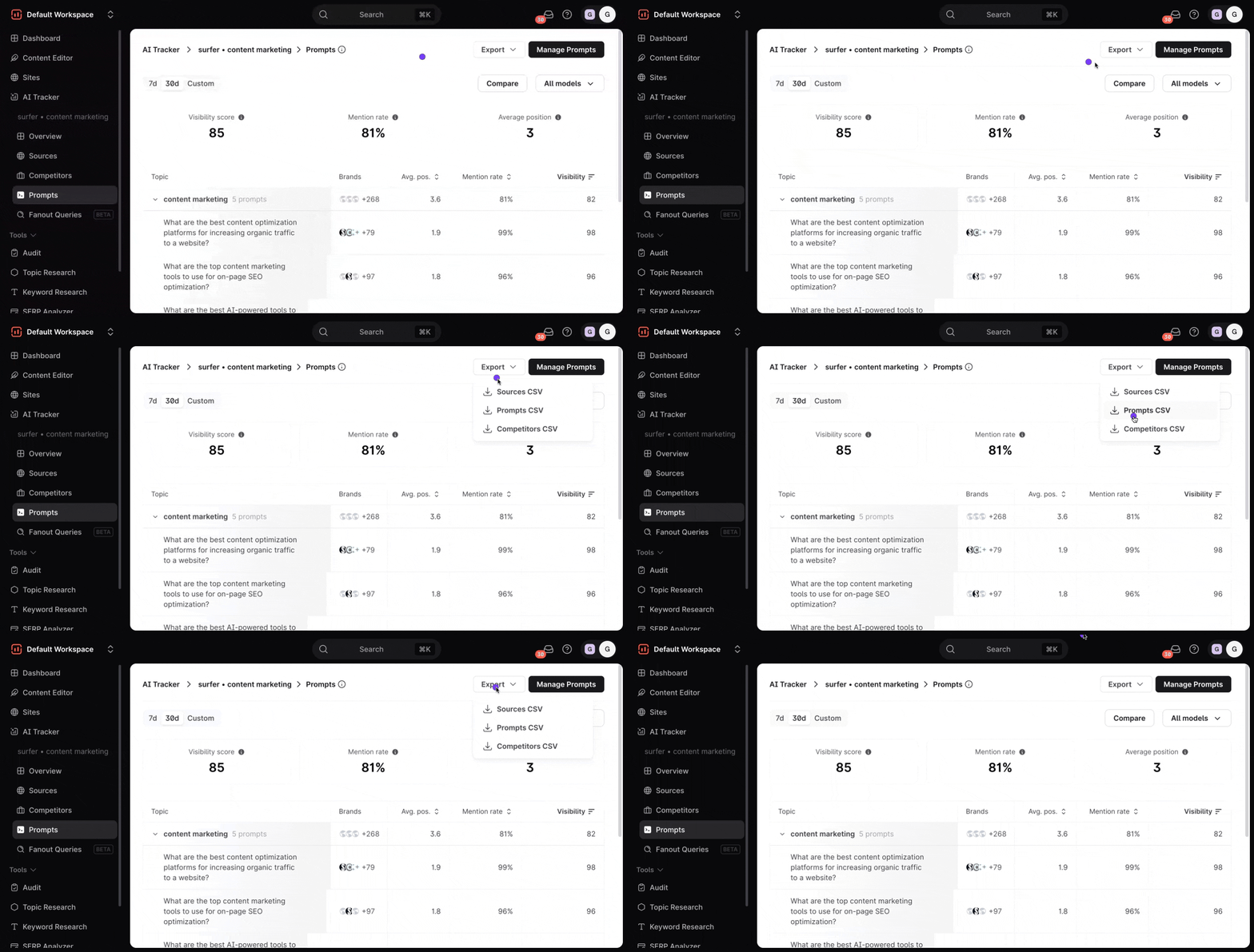
You can download the analysis as a .CSV format by clicking the Export button found in the top-right corner of the dashboard.